Getting started
Step-by-step: sign up in the Voyah Cloud app, verify your email, add a vehicle, and link your T-Box.
1. Create account
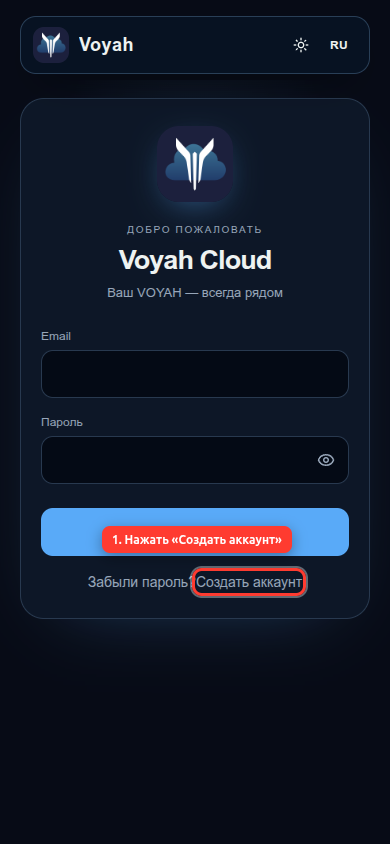
Open the login page and tap Create account.
2. Register
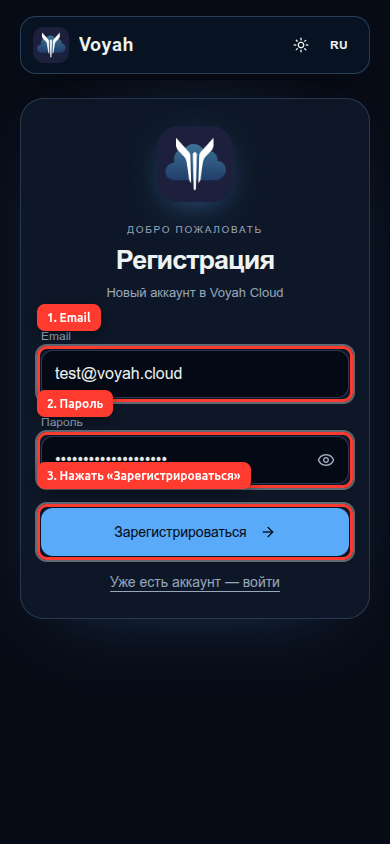
Enter email and password, then tap Register.
3. Email verification code
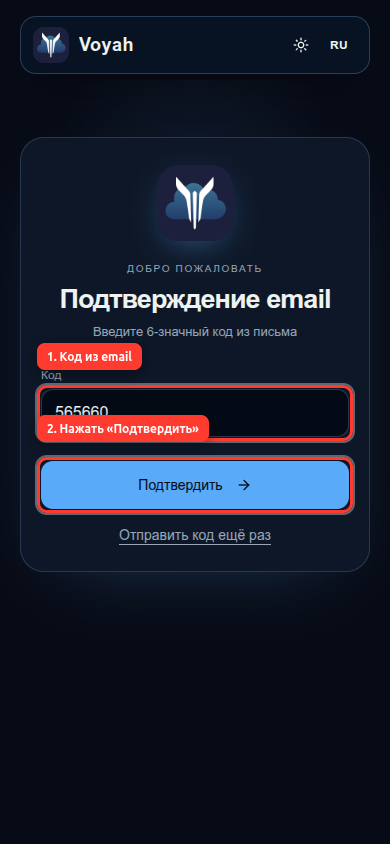
On the verification screen, enter the code from your email and tap Verify.
After success you leave /login and land in the dashboard.
4. Add vehicle
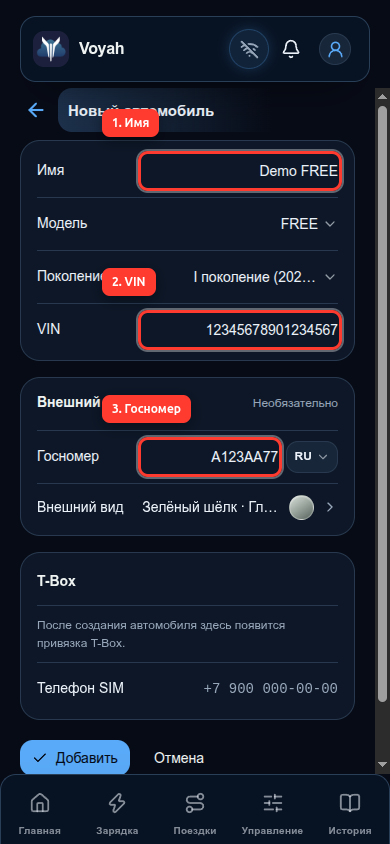
From home or the vehicle list, tap Add vehicle (or open /vehicles/new) — the form below opens.
5. Vehicle details
Fill in label, VIN, and license plate.
6. T-Box SIM and save
Enter the T-Box SIM phone (required for wake) and tap Save / Add.
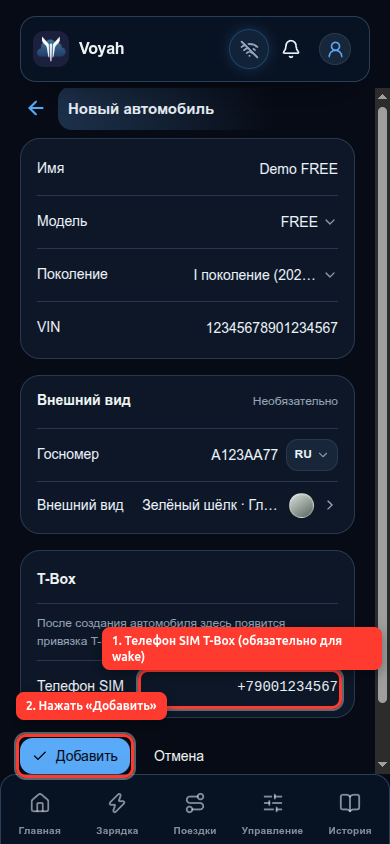
You’ll see the vehicle edit page with the T-Box section.
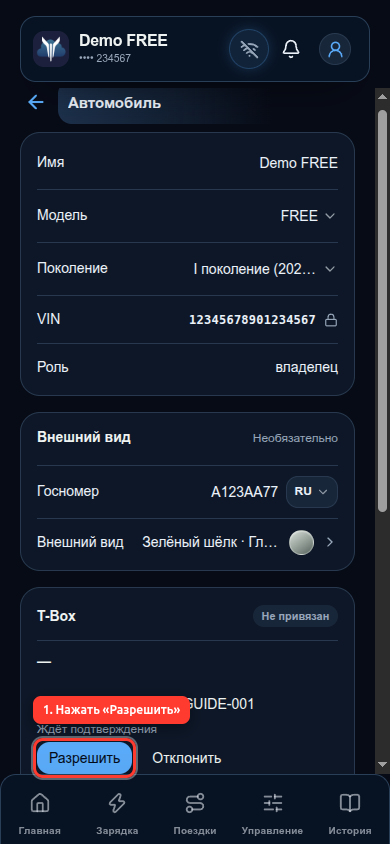
7. Approve T-Box claim
When the T-Box submits a claim, you’ll see its serial number and Waiting for owner. Tap Approve.
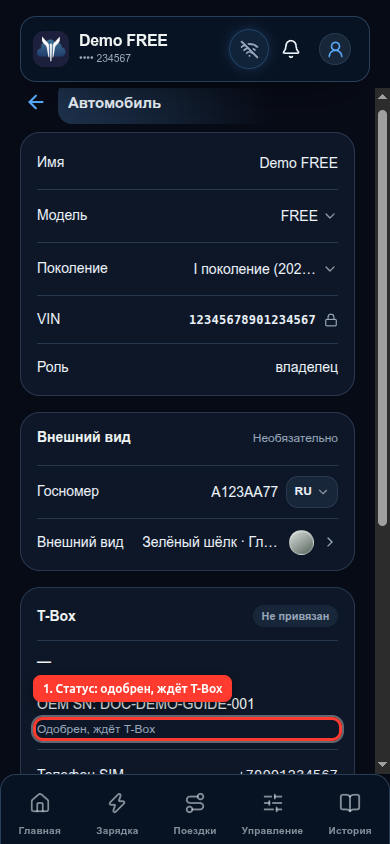
8. Claim approved
Status becomes Approved, waiting for T-Box while the device completes linking.
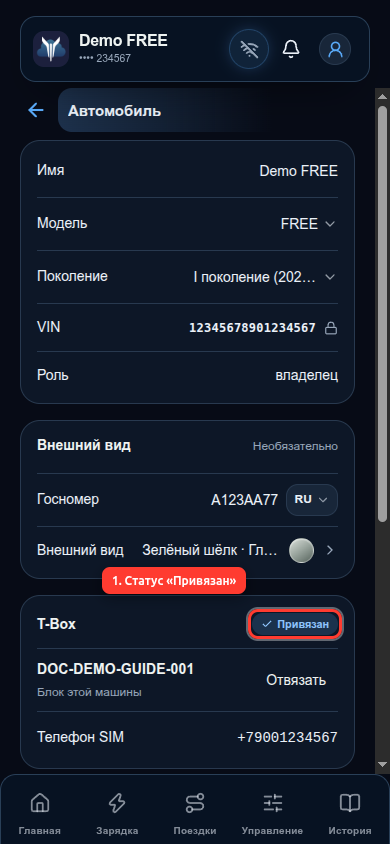
9. T-Box linked
When linking finishes, status shows Linked — remote control and telemetry are available.
Next steps
- Manage your vehicle in the app.
- Product overview at voyah.cloud.