 Voyah Cloud
Charging and schedule
Check charging status, set a charge limit or schedule charging for a chosen time.
Charging status
Open Charge in the app’s bottom navigation.
- Charge percentage and status show whether the vehicle is charging now.
- Power, current and voltage describe the current charging session.
- Remaining time is the vehicle’s estimate to its charge limit.
A dash means the value is unavailable. SOC is the battery’s current charge; SOH describes its health. They are different measurements.
 Long screenshot preview
Charge limit, start and stop
- Connect the vehicle to a charging station.
- In Limit and schedule, set the Charge limit — the percentage to charge the battery to.
- Tap Start charging to start, or Stop charging to stop charging.
The limit is applied when starting charging or saving a schedule. Moving the slider alone does not send a setting to the vehicle.
Charging schedule
- Set the desired charge limit.
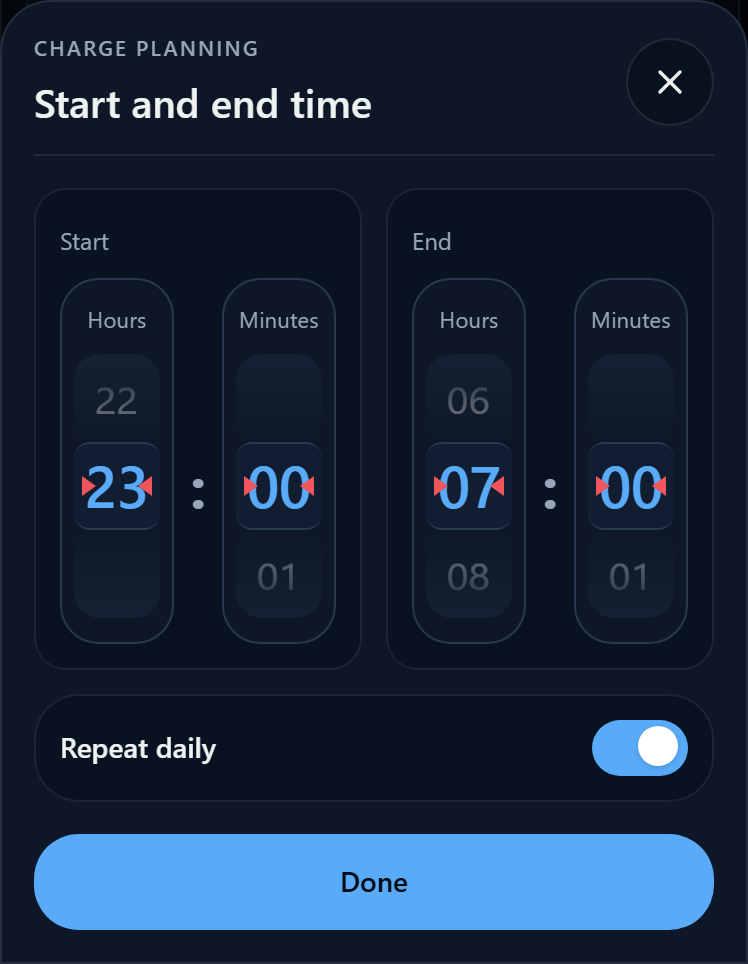
- Enable Scheduled charging. To edit an enabled schedule, open Charging window.
- Set the start and end times in the browser’s time zone on your phone or computer.
- Enable Repeat daily to charge at these times every day.
- Tap Done and check the command result.
Time conversion
The app converts the selected time using the browser time zone and the latest known T-Box offset. If that offset is unavailable, the browser offset is used: check the vehicle clock before scheduling. Recheck the window after changing time zones.
To disable the schedule, turn off Scheduled charging and check the command result.
Check the result
Open notifications and check the command result. Then check the status and readings on the Charge page.
An open form or a changed slider does not mean the settings have been applied. If a command fails, its result is highlighted in notifications.