 Voyah Cloud
Notifications and command history
Check a command result, find an earlier event and set up notifications on your phone.
Recent events
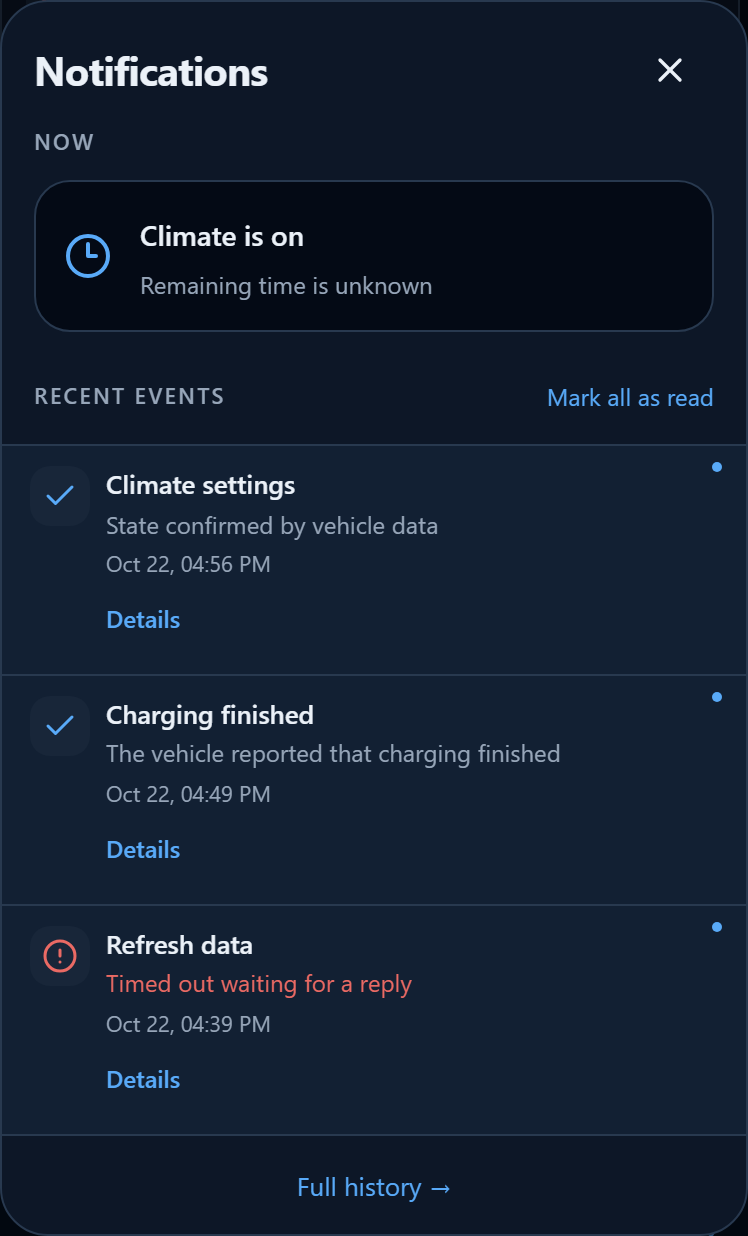
Tap the bell in the top bar to open recent events. The badge shows the number of unread notifications.
Each entry shows the action, result and time. Details reveals available parameters, such as the heating temperature and duration or the battery level when charging ended.
Viewed entries are marked as read automatically. Mark all as read marks notifications as read without deleting them. Tap Full history → to open the full list.
Understand the result
Open History → Notifications. Choose All or Unread, expand details and use Load more when older entries are available.
- The vehicle confirmed the command means a successful result was received.
- State confirmed by vehicle means the corresponding state was confirmed.
- No response to the command means confirmation did not arrive within the waiting period. It does not identify the cause.
- For Vehicle rejected the command or Command failed, check the available details.
A red result belongs to a particular attempt. It does not mean the vehicle is currently offline: the Wi-Fi icon in the top bar shows the current connection.
Charging stopped means the vehicle is no longer charging; this message alone does not establish a fault.
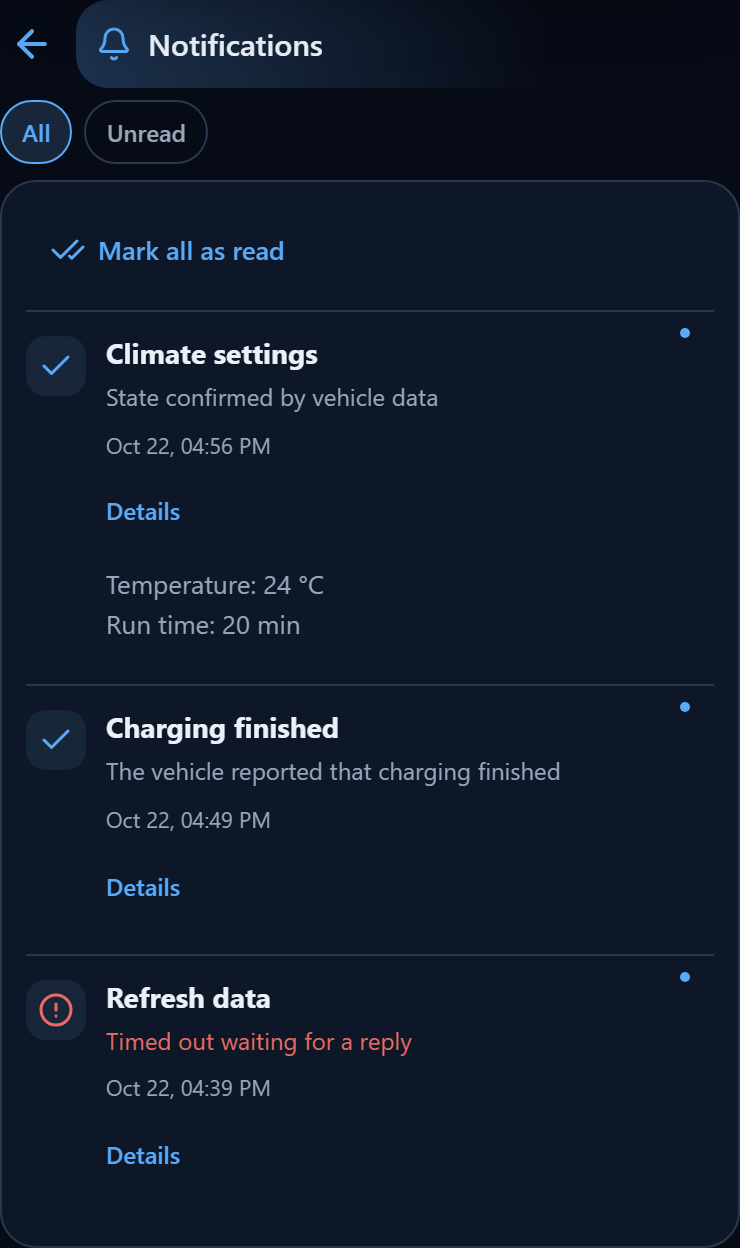
Waiting for delivery is not completion. Climate and seat details depend on the command’s confirmed parameters; unknown values are not replaced with assumptions.
Command history
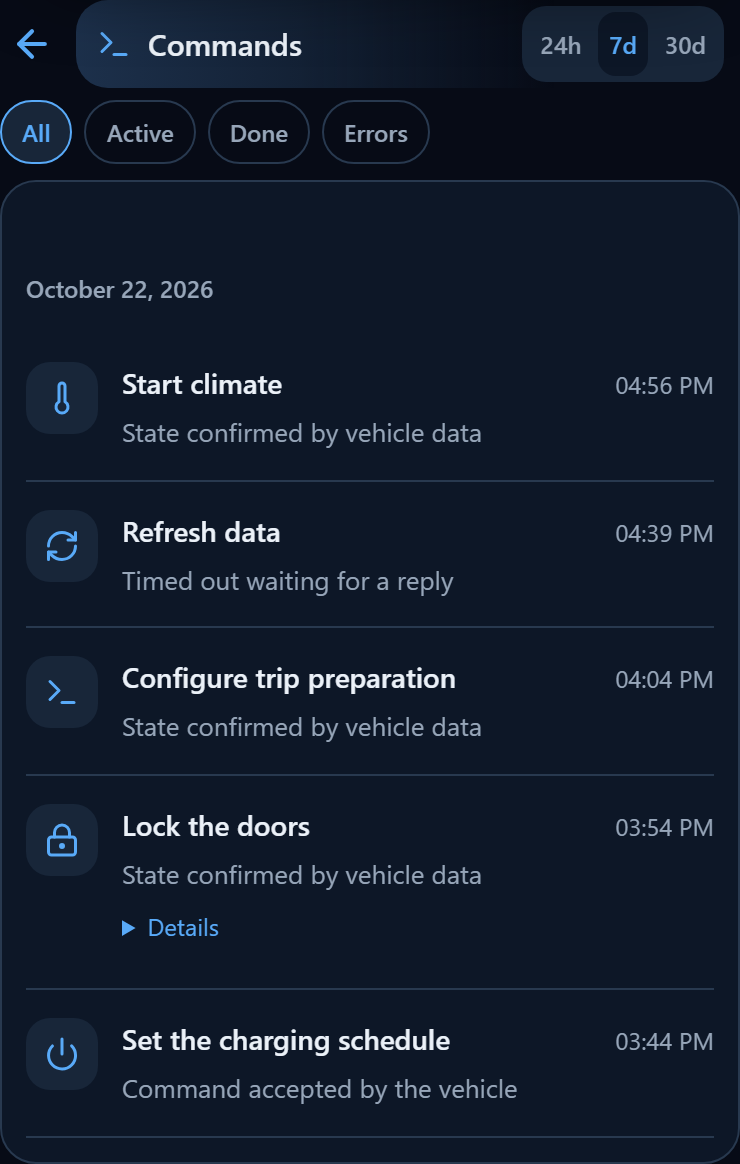
Open History → Commands. Choose 24 hours, 7 days or 30 days and a status filter: all, active, successful, or errors and cancellations. Entries show the action, time and result, with details where available.
Notifications also contain other events, such as charging completion. Command history focuses on commands that were sent.
Current limitation: the request loads the latest 200 commands. Selecting 30 days filters the loaded entries; it does not guarantee that every command from the month will be displayed.
Push on your phone
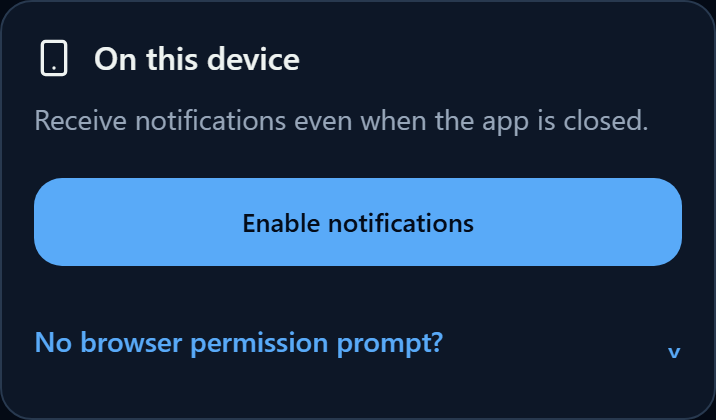
- Open your profile using the avatar, then App → Notification settings.
- Under On this device, tap Enable notifications.
- Allow notifications in the browser prompt.
- Wait for the confirmation that notifications are allowed on this device.
Enable push separately on each device. Disable on this device stops delivery here only. The in-app history remains available without push.
On iPhone with iOS 16.4 or later, use Share → Add to Home Screen, open the app from that icon and enable notifications. Web Push on iPhone — WebKit.
Choose events
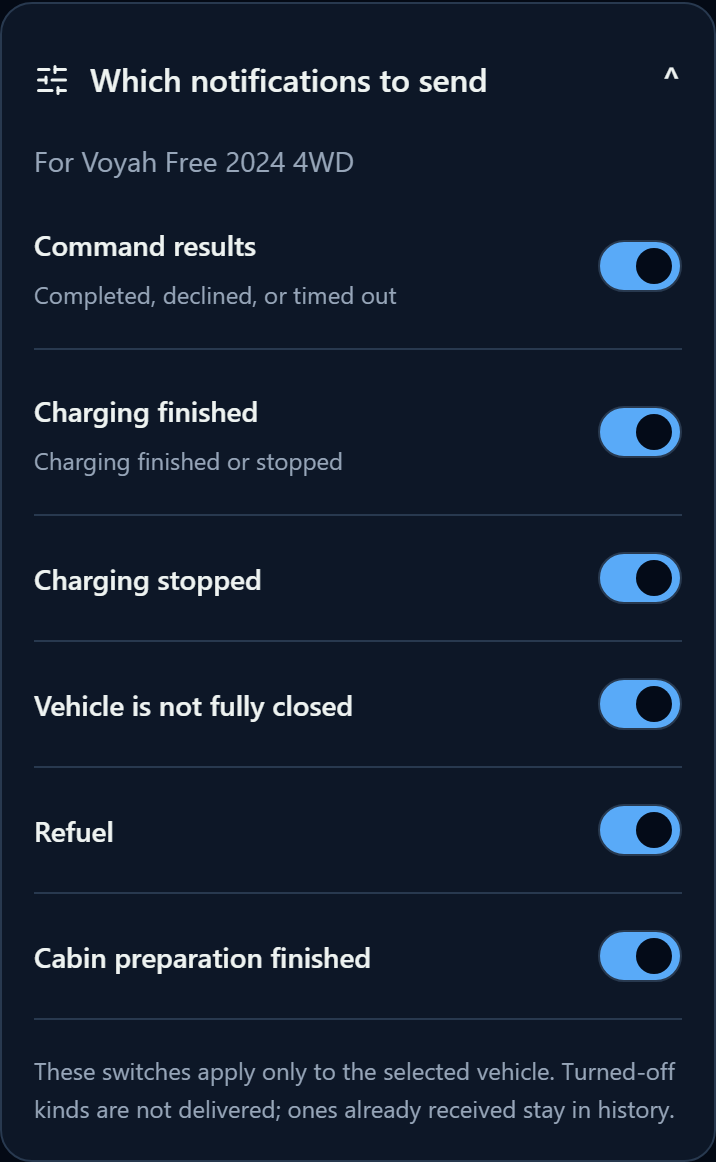
Expand Which notifications to send. These switches apply to the selected vehicle. The application shows the available set: command results, charging completion and stopping, plus other categories connected on the server.
Disabling a category stops new notifications from that category; previously received entries remain. Vehicle event preferences are separate from enabling push on an individual device.
If push does not appear
Check notification permissions for the site and app in the browser and system settings. If no prompt appears, expand the notification help in the app settings.
If delivery to the device is not connected, server push delivery is unavailable; history can still work independently. Check a command result in the history when push is missing: an absent phone notification does not prove command failure.
Read status is stored on the server. The current interface has no user deletion action. Retention and event availability depend on server configuration; permanent storage and instant delivery are not guaranteed.
Screenshots show demonstration events in the real interface. Tap an image to enlarge it.
On a supported system, the installed web app can show the unread count on its app icon. It updates from notifications and clears when none remain unread. Display depends on device support and badge permissions; this is separate from the bell counter.