 Voyah Cloud
Flash T-Box with OTA_S
Connection stage 1, for Voyah H97C. Prepare the USB connection and flash the T-Box using the OTA_S wizard. Then continue to stage 2: creating an account and connecting the vehicle.
If the T-Box is already flashed and its MPU version contains VC, you do not need to flash it again. Continue to stage 2: create an account and connect.
1. Prepare your equipment
You will need:
- A Windows or macOS laptop.
- A USB-A to USB-A cable.
- OTA_S v3.0.0: download for Windows or download for macOS.
- The daily engineering-menu password — shown below.
Turn on the ignition and keep the infotainment system powered throughout the procedure.
2. Enable USB Debugging and connect the laptop
On the vehicle’s infotainment system:
- Open Settings → System.
- Tap Hardware Version approximately 10–20 times.
- Enter the daily password.
- Enable USB Debugging in the engineering menu.
- Connect the laptop with the USB-A to USB-A cable to the vehicle’s port nearest the passenger.
Before flashing, make sure ADB can see the infotainment system and the IVI-to-T-Box connection is available.
3. Start flashing the T-Box

In OTA_S:
- Open «Переход к Voyah Cloud…» — Move to Voyah Cloud.
- Under «1. Прошивка T-BOX» — Flash T-BOX, select «Старт» — Start.
- Wait until the procedure finishes.
OTA_S downloads the firmware package and transfers it to the T-Box through the infotainment system. The T-Box reboots automatically after flashing.
Do not disconnect USB or power, and do not manually reboot the T-Box while flashing is in progress. Wait until the wizard confirms completion.
Are wizard steps 2–3 required?
They are optional for the current installation. T-Box PKI and IVI Lab CA are intended for switching to firmware updates from a server in Russia. You may skip them when connecting Voyah Cloud now.
4. Check the flashing result
After the automatic reboot, check the MPU version. It must contain VC, for example 2.2.2VC.
The example number is not a required current version; the important part is VC.
If VC is missing, follow “If flashing did not finish successfully” below.
Next stage: create an account and connect
Once you have checked VC, continue to stage 2: create an account and connect your vehicle, covering email confirmation, vehicle details, T-Box linking and fresh data.
VC confirms the flashing result. Connection to the service is checked separately.
If there is no ADB connection
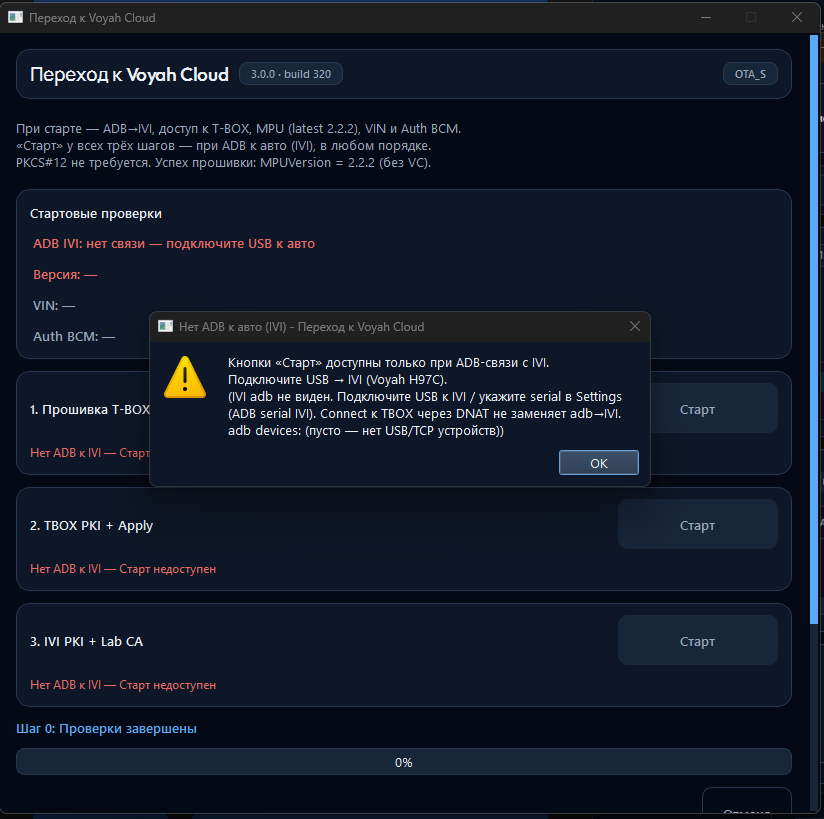
The wizard is open at «1. Прошивка T-BOX». The “No ADB connection to the vehicle (IVI)” warning covers part of the window, and Start buttons are unavailable. Check USB Debugging and the USB connection to IVI. An SSH connection to the T-Box does not replace ADB access to the infotainment system.
The supplied OTA_S screenshots retain the original Russian interface; the descriptions here explain its labels in English.
If flashing did not finish successfully
After the failed attempt has ended:
- Check that USB Debugging is enabled.
- Check the USB connection and that ADB can access the infotainment system.
- Reboot the T-Box using one of the methods below.
- Reopen the OTA_S wizard and start the flashing step again.
Through the engineering menu
- Open Settings → System.
- Tap Hardware Version 10–20 times and enter the daily password.
- Scroll to the bottom of the engineering menu.
- Select TBOX相关操作 — T-Box operations.
- Select 重启TBOX — reboot T-Box.
Through Voyah Tweaks
Open Voyah Tweaks → Settings. In System, select Reboot TBOX. In the supplied Russian interface, these labels are «Настройки», «Система» and «Перезагрузить TBOX».
Use these reboot methods only after an unsuccessful attempt has finished. Do not use them during active flashing.
If the error repeats, save its text or an OTA_S screenshot for troubleshooting.